At any time you can export your inventory as an Excel sheet with .xlsx extension.
Note: It is only possible to perform an export for one category at a time. If you wish to have all inventories collected in a single excel file represented by different worksheets, please modify your export files outside Labfolder accordingly.
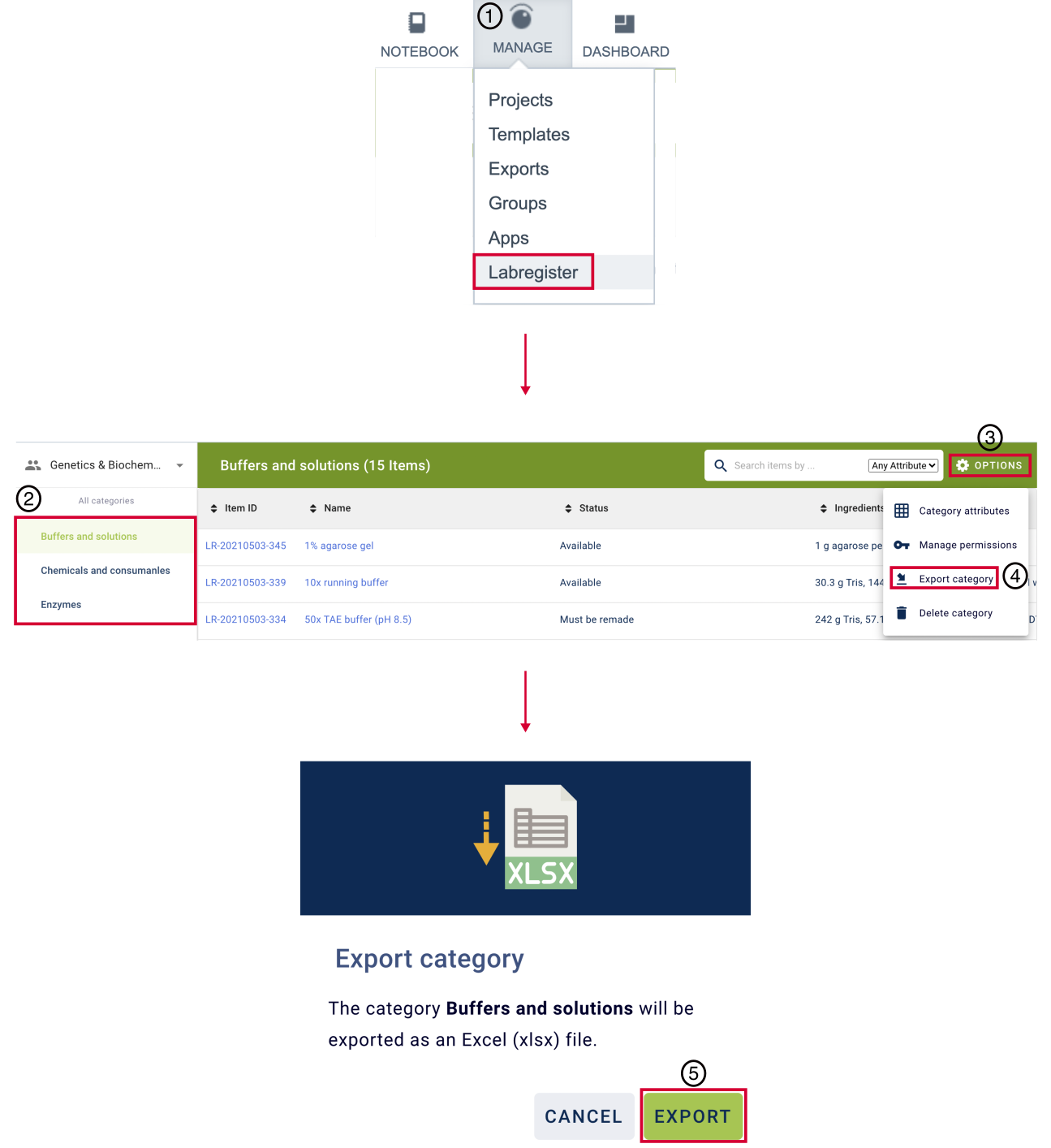
To download your inventory, please follow the steps below:
- Go to Manage > Labregister.
- Open the category you would like to export from the category list on the left.
- Click on Options at the right top of the page.
- Choose Export category.
- Confirm by choosing the green Export button.
- The export file will automatically start downloading in your browser.
Note: The export sheet will always show 1 to 1 what is displayed in the inventory category, meaning that all items and item attributes will be exported. In the exported Excel sheet, all attribute types (item IDs, Test, Numbers, Date, Hyperlink, and Dropdown) will be displayed as text values. Attached images or files are not exported. After you have performed the export from the Labregister category, you can edit and adjust your data in Excel.
Was this article helpful?
That’s Great!
Thank you for your feedback
Sorry! We couldn't be helpful
Thank you for your feedback
Feedback sent
We appreciate your effort and will try to fix the article