Understanding data recovery in Labfolder Public Cloud
Labfolder provides several safeguards to help users manage their data and reduce the risk of accidental deletion. Understanding how backups work and which preventive measures are available can help you protect your research data.
This article explains the backup and recovery approach for Labfolder Public Cloud, the safeguards available to help prevent accidental deletion, and the steps you can take to protect your data.
How do backups work?
Backups are maintained for Labfolder Public Cloud to support system recovery and business continuity in the event of a major incident.
These backups are designed to support the recovery of the overall environment rather than individual items. Consequently, restoring specific deleted folders, projects, entries, or other content is not part of the standard recovery process, and the recovery of individual items cannot be guaranteed.
For this reason, we recommend taking appropriate precautions when managing your content and maintaining independent exports of important research data.
What safeguards are available to prevent accidental deletion?
Labfolder provides several safeguards to help users review and confirm deletion actions before proceeding.
Deletion confirmation dialogs
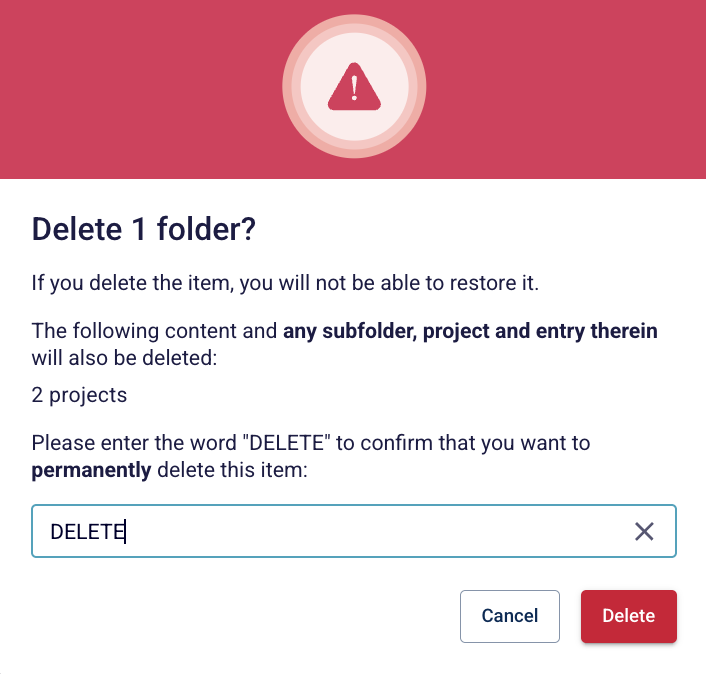
When you initiate a deletion, Labfolder displays a confirmation dialog that allows you to review the action before confirming it. Depending on the selected content, the dialog may also identify related items that will be affected. For example, deleting a folder may also delete its subfolders, projects, and associated entries.
Additional confirmation by typing DELETE
As an additional safeguard, deleting an individual folder, project, template, or group requires you to type DELETE into the confirmation dialog before the Delete button becomes active. This additional step helps reduce the likelihood of accidental deletion by requiring explicit confirmation before the action can proceed.
Administrator controls
Group administrators can enable the Prevent users from deleting any content setting to restrict users from deleting content. This option allows administrators to manage deletion permissions according to their group's requirements and may be particularly useful when working with important research records.
For more information on how to configure this setting, please refer to the Group Settings guide.
How can I help protect my research data?
We recommend the following practices to help minimise the risk of accidental data loss:
- Review deletion confirmations: Check the selected content and carefully review the confirmation dialog before proceeding.
- Consider related content: Verify whether the deletion will also affect associated folders, projects, or entries.
- Review deletion permissions: Consult your group administrator about restricting deletion permissions where appropriate.
- Maintain independent exports: Regularly export important data and store the exported files securely outside Labfolder, in accordance with your organisation's data management policies.
Please note that the safeguards described above are intended to help prevent accidental deletion and do not provide a means of restoring content once it has been permanently deleted.
Does this information apply to on-premise installations?
For on-premise installations, backup arrangements and recovery options may vary depending on the deployment and its configuration. Please consult your system administrator for information about the backup procedures and recovery options available in your environment.
Was this article helpful?
That’s Great!
Thank you for your feedback
Sorry! We couldn't be helpful
Thank you for your feedback
Feedback sent
We appreciate your effort and will try to fix the article